Presentation & Formats
Use present mode in the MindLM editor to show a map fullscreen and switch themes, read content in the default mind map or the Advanced outline format, and control how many levels are visible with the expand controls, shortcuts and zoom presets.
Last updated ·
Present mode and the Format menu decide how a map is shown: present mode when you are walking someone through it, the Advanced format when you want to read it like a document.
Present mode
Click Present at the top. The browser goes fullscreen, the header and sidebar disappear, and only the map remains.
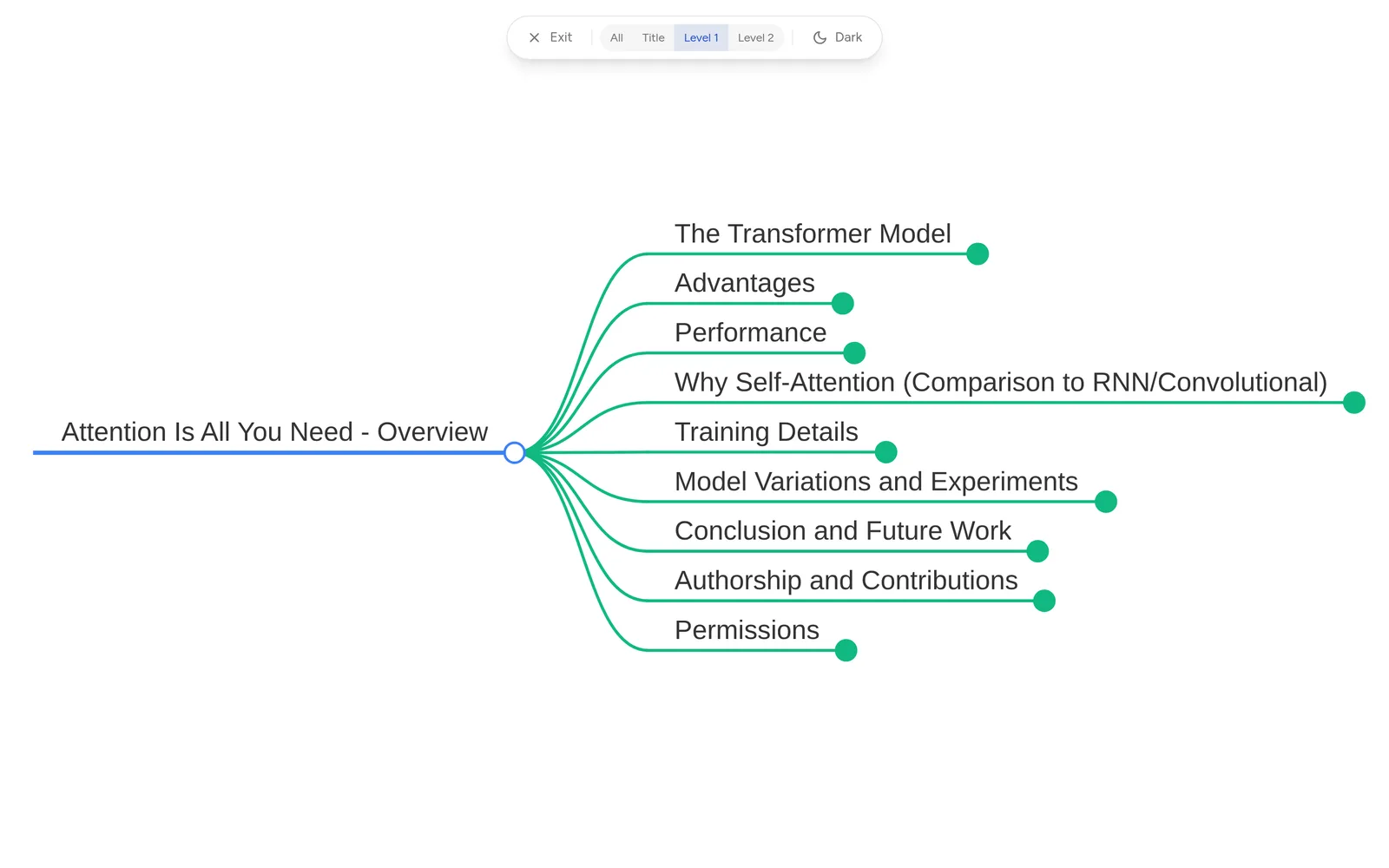
- Move the mouse to the top edge of the screen and a control capsule slides in: Exit, expand levels (All / Title / Level 1 / Level 2), and a Dark / Light switch.
- The dark theme only affects the canvas while presenting; it returns to white when you exit.
- A useful rhythm: press 0 to show the title only, then 1, 2 and E to reveal each level.
- Press Esc or leave fullscreen to end.
There are no slides to flip through; expanding level by level is the pacing.
Map formats
Click Format at the top to switch between the two views. Each map remembers the format you last chose.
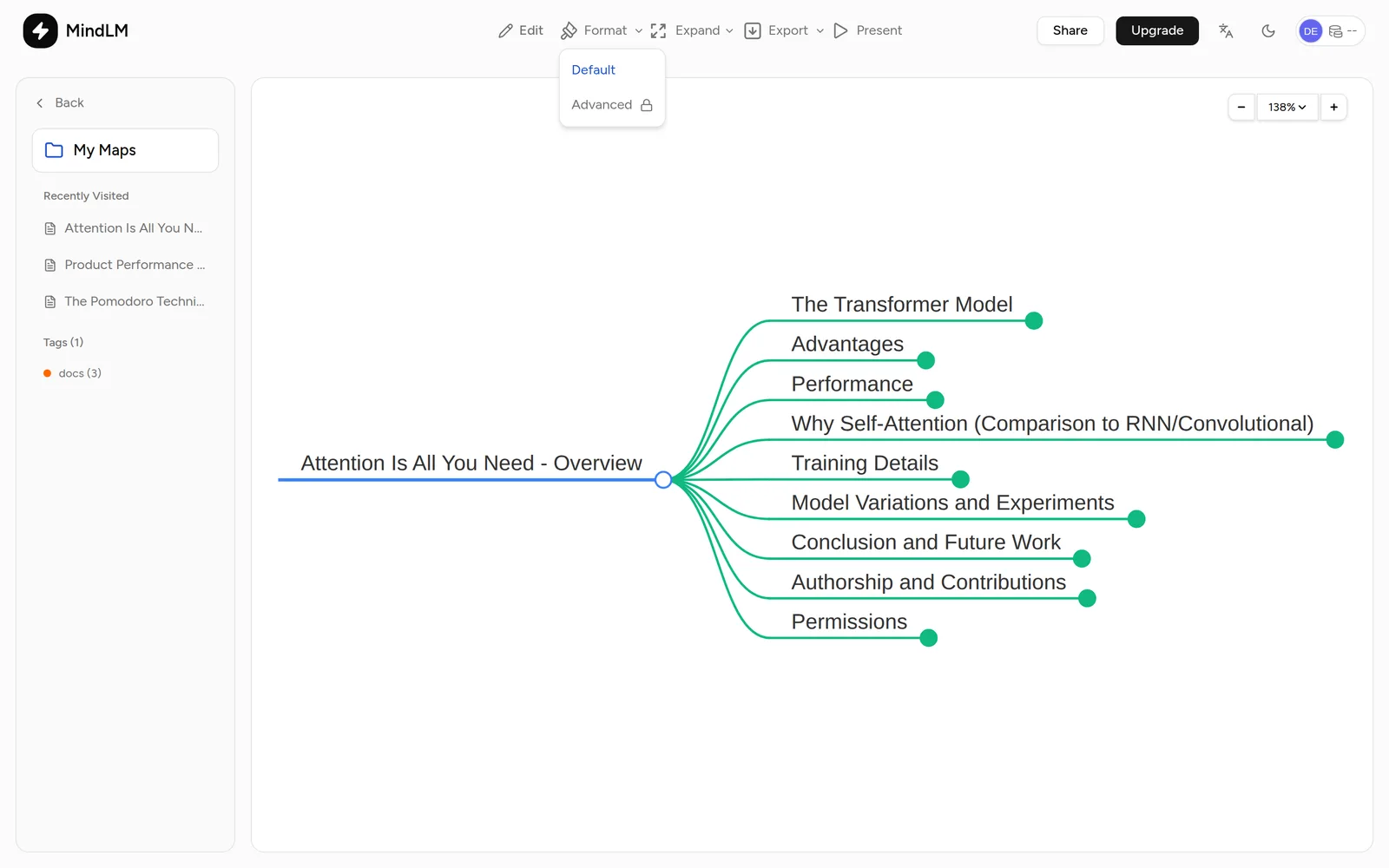
| Format | Presentation | Plans |
|---|---|---|
| Default | Tree-style mind map; editable, exports to images | All plans |
| Advanced | Document-style outline: level 1 as chapters, level 2 as sections, deeper levels as bullet points, with a table of contents on the right and node search | Pro |
The Advanced format is read-only and made for reading and searching. It opens fully collapsed; "All" in the expand controls opens everything, "Level 2" opens down to the level-1 headings.
PNG and SVG export only work in the Default format. Switch back before exporting an image.
Expand levels and zoom
- Expand controls (top toolbar): All E, Title 0, Level 1 1, Level 2 2. The main button toggles between Expand and Collapse.
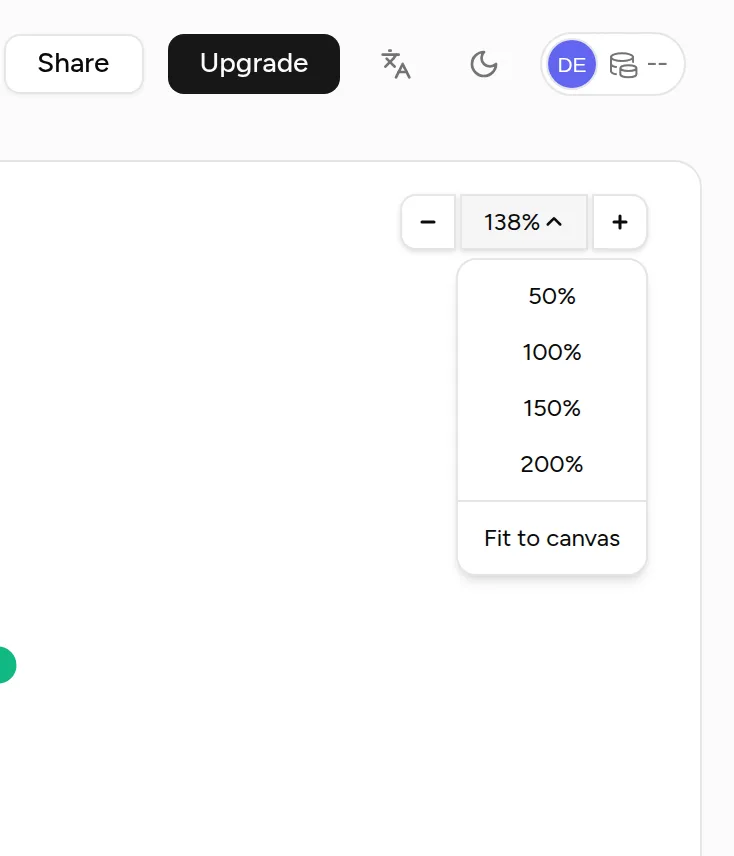
- Zoom (top right): 25% steps from 25% to 400%; the dropdown offers 50% / 100% / 150% / 200% and Fit to canvas (⌘ 0).
FAQ
Can a share link open in the Advanced format?
Yes. Choose "Open as: Advanced" when creating the link and viewers get the outline view, with no account or Pro plan needed.
Can I edit text while presenting?
No. Present mode is display only; exit it and enter edit mode to make changes.
More questions in the Help Center.
Next steps
- Export & Share: image export and share links
- Browse & Edit: editing nodes