Generation Settings
What every option on the MindLM generate toolbar does: the output language list, the difference and credit multiplier between the Fast and Pro models, the Concise / Standard / Detailed levels, the Summary and Action map styles, plus how credit estimates, background tasks and parallel task limits work.
Last updated ·
Every input page has a generate toolbar underneath the input. It decides which language the map is written in, which model builds it, how detailed it is, and from what angle. You can change any option right up to the moment you click generate.
Where the toolbar is
Directly under the text box or upload area. Text, Document, Ebook, Video, Webpage, Audio and Podcast show four dropdowns: output language, model, detail level and map style. Image and Social Media have no map style dropdown.

Output language
Defaults to Auto, which follows the source. You can also force the map into 中文(简体), English, 日本語, 한국어, Español, Français, Deutsch, Português or Русский. For an English source and a Chinese map, pick 中文(简体).
Model
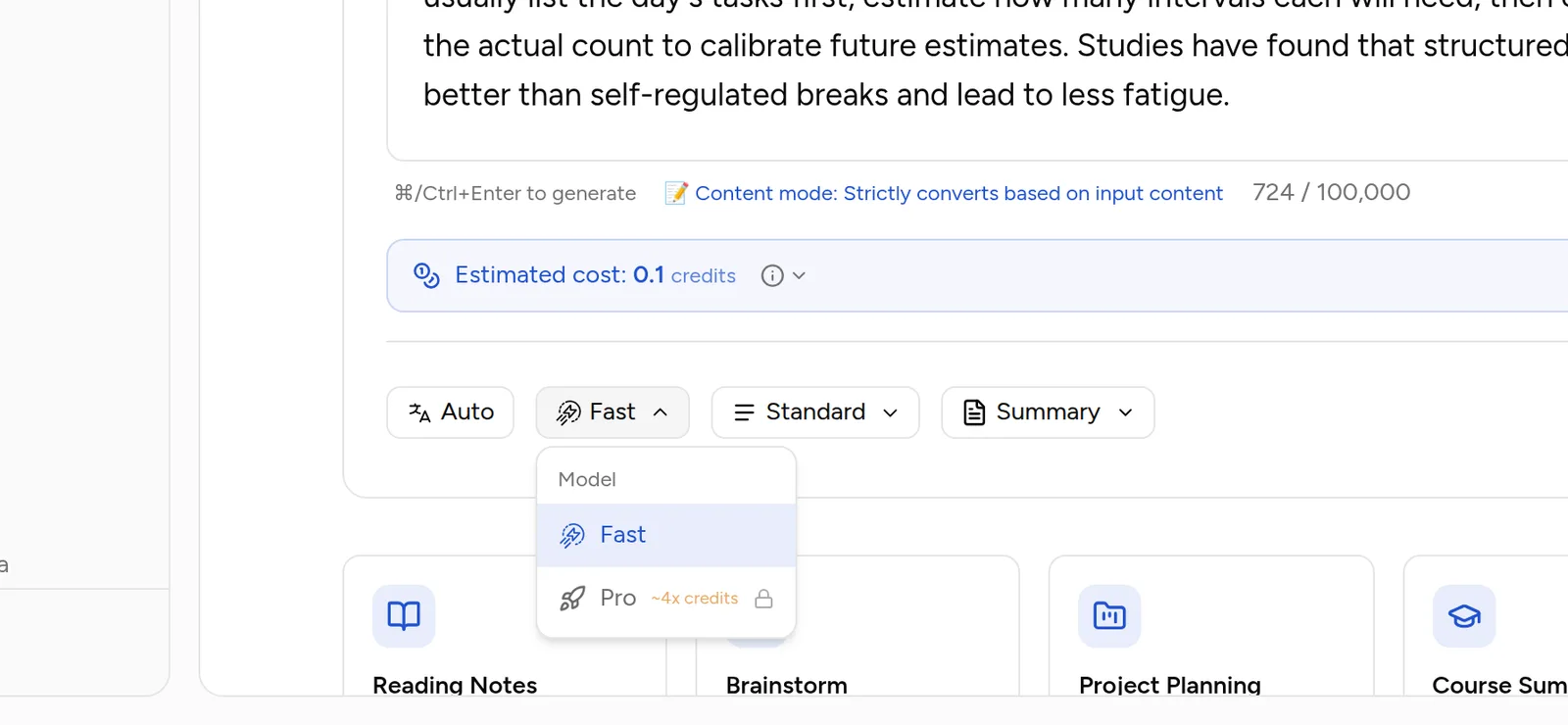
| Model | Best for | Credit multiplier | Plans |
|---|---|---|---|
| Fast | Everyday use, quick results | 0.8× | All plans |
| Pro | More complete structure and sharper grouping | 3.5× (about 4× Fast) | Pro |
Fast is the default. In Settings → AI you can make Pro the default; every input page then remembers it.
Detail level
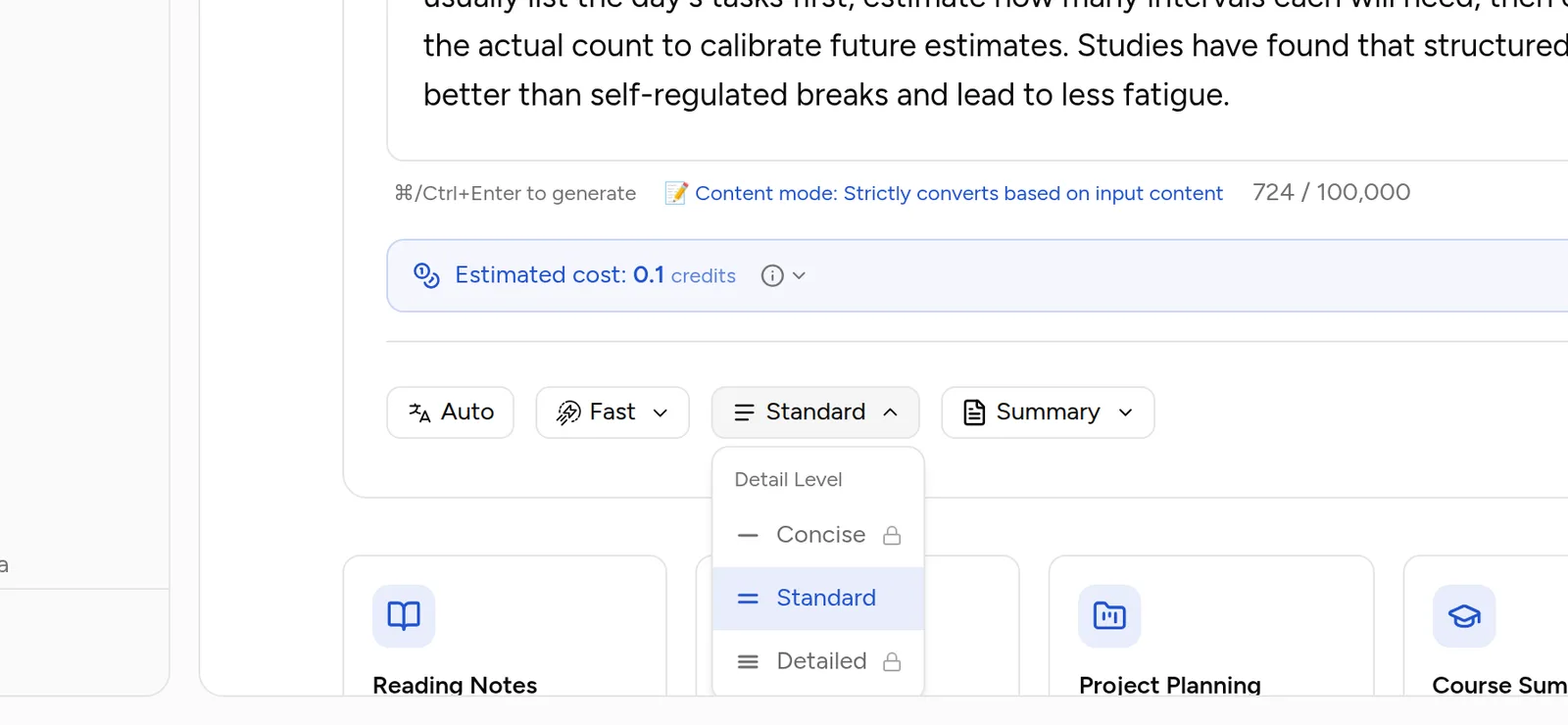
| Level | Effect | Plans |
|---|---|---|
| Concise | Main branches only, few nodes | Pro |
| Standard | Default: main branches plus key details | All plans |
| Detailed | Keeps as much detail as possible, many nodes | Pro |
If a map has too many nodes, besides choosing Concise you can limit how many levels are shown with the expand controls in the editor.
Map style
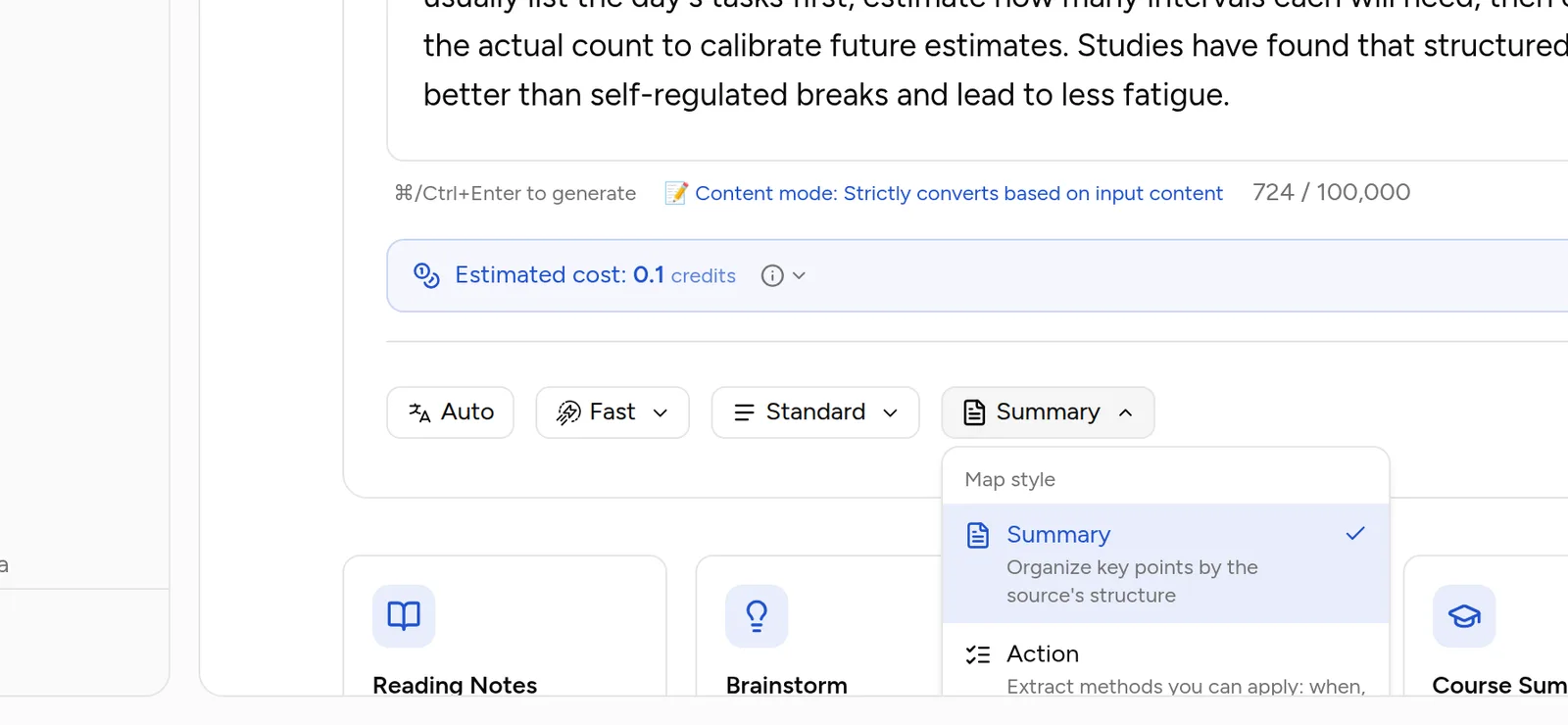
| Style | What it does | Good for |
|---|---|---|
| Summary | Organises key points by the source's structure | Books, courses, articles, meeting notes |
| Action | Extracts methods you can apply: when, how, limits | Methodologies, tutorials, lessons learned |
Both styles cost the same credits and are available on every plan. To see the same content both ways, generate it twice.
Options per input page
| Input page | Output language | Model | Detail level | Map style |
|---|---|---|---|---|
| Text, Document, Ebook | ✅ | ✅ | ✅ | ✅ |
| Video, Webpage, Audio, Podcast | ✅ | ✅ | ✅ | ✅ |
| Image, Social Media | ✅ | ✅ | ✅ | — |
Credit estimates and background tasks
- The text page shows the estimated cost and your balance as soon as there is text; Document, Ebook, Video and Webpage give a quote you confirm.
- On submit, 1.3× the estimate is reserved; the actual usage is settled on completion, and failures or cancellations refund everything.
- Inputs above the background threshold (10,000 characters on Free, 20,000 on Pro, 50,000 on Max), and all documents, ebooks, video and audio, run as background tasks. Progress is in the task tray at the bottom right and leaving the page does not stop them.
- Parallel tasks: 1 on Free, 3 on Pro, 5 on Max. Queued tasks can be cancelled; running tasks must finish.
- After 2 minutes in the queue the page says it is taking longer than usual; do not resubmit. Tasks that never start are cancelled automatically with a refund.
FAQ
Are my choices remembered?
The model is (through the default model in Settings). The other options are chosen per generation.
Does the Action style invent steps?
No. It only extracts methods, conditions and limits that are in the source. If the source has no methodology, the result is close to a Summary map.
More questions in the Help Center.
Next steps
- Credits: the full estimate-and-settle rules
- Browse & Edit: adjusting the map after generation