Image OCR
Upload a PNG, JPG, JPEG or WEBP image and MindLM extracts the text with OCR before organising it into a structured mind map. Covers supported formats and size limits, the steps, tips for better recognition, pricing and common questions.
Last updated ·
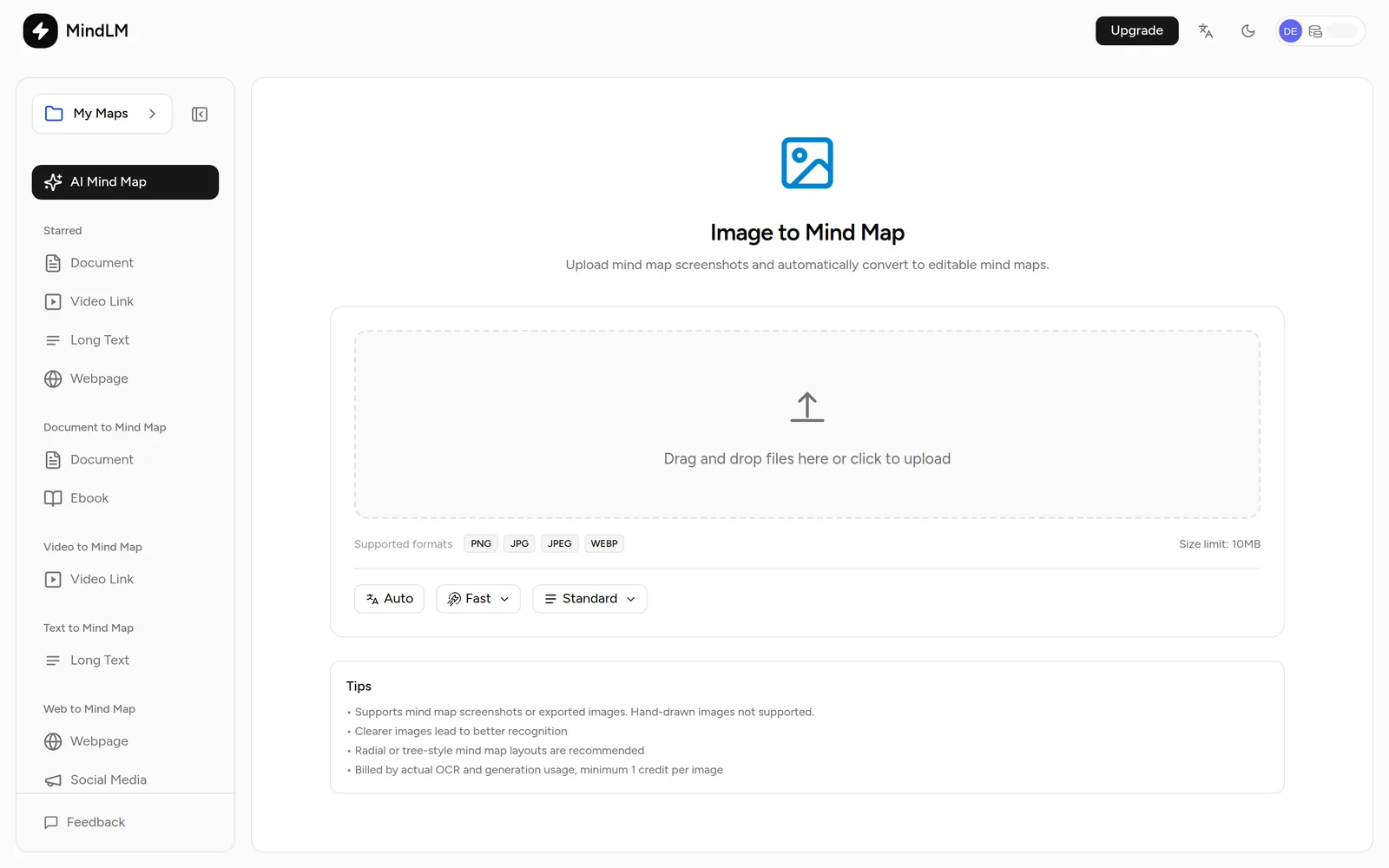
Upload a screenshot or photo, and MindLM reads the text first, then builds the map. It is the right entry for scans, slide screenshots, whiteboard photos and maps exported from other tools as images.
When to use it
- Page screenshots of a scanned PDF
- Photos of slides, handouts or a whiteboard
- Images exported from other mind mapping tools (radial or tree layouts recognise best)
- Clear photos of book pages
Supported formats and size
| Formats | Size limit | Plans |
|---|---|---|
| PNG, JPG, JPEG, WEBP | 10 MB | All plans |
Steps
- Choose Image File in the sidebar, then drag in or pick the image.
- The page shows "Estimated: 1 credit". Adjust the output language, model and detail level if needed.
- Click generate. It usually takes about a minute, then the editor opens.
Getting better recognition
- Sharper is better: shoot straight on, with even light and no glare.
- Crop to the text area and remove unrelated background.
- Handwriting and decorative fonts are not supported; recognition works best for English and Simplified Chinese.
- One image per generation. For multi-page content, upload pages separately or stitch them into one clear tall image.
Pricing
Billed by the actual OCR and generation usage, with a minimum of 1 credit per image. One credit is held when you upload and the difference is settled when the task completes.
FAQ
Some recognised text is wrong. What now?
Enter edit mode in the editor and double-click the node to correct it. If there are many errors, regenerate from a sharper image.
Can I upload screenshots of a whole PDF?
Yes, one image at a time. For a document with many pages, prefer document upload; OCR is only needed for scans.
More questions in the Help Center.
Next steps
- Documents & eBooks: PDFs with a text layer go straight in
- Browse & Edit: fixing recognition errors